

The school workspace
Your day at a glance
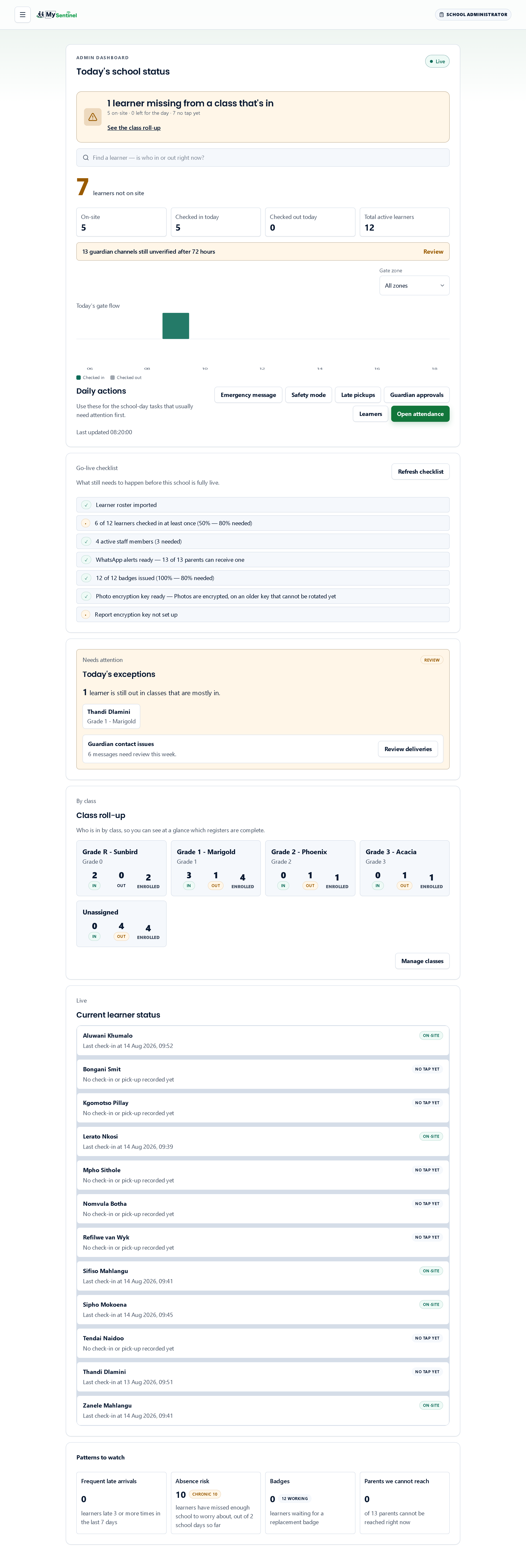
The dashboard a school administrator lands on — the one line that says whether anything needs you, the counts underneath it, and the panels that turn a number into a name.
Your workspace has twenty-odd screens. You will open one of them most mornings, and this is it. It is built to be read in about three seconds on the way into a corridor, and everything below the first line exists to turn that reading into a name you can act on.
The one line that matters
Under the heading Today’s school status sits a single sentence in large type. It is the answer to the only question worth asking at 07:40 — does anything need me right now?
When the school is calm it reads Nothing needs your attention right now. Otherwise it names one thing, never a list, and it carries a link straight to the screen that fixes it. The order it chooses is the order of consequence:
- A learner still on the premises past your pickup cut-off, which links to Open late pickups.
- A learner missing from a class that is otherwise all in, which links to See the class roll-up.
- A parent who cannot be reached at all, which links to See who.
- A message that failed to reach a parent, which links to Open notifications.
- Work that gave up entirely before anyone was told, which links to Open the recovery queue.
- A learner with no working badge.
A child unaccounted for outranks a parent who will not hear about them, which outranks a badge. If nothing is wrong but one of the underlying checks could not be run, the line says Nothing urgent — but one check could not be run rather than claiming the all-clear on its behalf: a figure the system could not read is not a figure that came back zero.
Beneath the sentence, always, is the shape of the day in three numbers — how many are on site, how many have left, and how many have not tapped a badge at all.
Finding one child fast
Directly under the verdict is a search box labelled Find a learner — is who in or out right now?. It filters the roster as you type, with a photo, the last recorded time, and a chip reading On-site, Off-site or No tap yet. Use it when a parent phones: it is the fastest route to that answer.
The counts
One large number leads: how many learners are not on site. It turns green and changes to Everyone is accounted for when that number reaches zero. Four smaller cards support it — On-site, Checked in today, Checked out today and Total active learners. A card showing a dash rather than a number has not loaded yet; it does not mean nobody.
Below them, a chart headed Today’s gate flow draws check-ins rising above a line and check-outs mirrored below it, hour by hour, so a morning rush or a staggered home-time is visible at a glance. If your school has named its gates, a Gate zone selector narrows the chart to one of them, or to Unzoned.
Daily actions
A row headed Daily actions carries the six errands that most often need doing first: Emergency message, Safety mode, Late pickups, Guardian approvals, Learners and Open attendance. They are shortcuts to screens the menu also reaches, put here so the commonest jobs need no menu at all.
Today’s exceptions
The next panel is headed Today’s exceptions and is either green with a chip reading All clear, or amber with a chip reading Review.
What it looks for is a learner still out in a class that is otherwise mostly in — the pattern that usually means one child, not one class, needs chasing. Each name is a button that opens that learner’s record. If guardian messages have failed this week the panel adds a Guardian contact issues row with a count and a Review deliveries button.
Class roll-up
Then a card per class, showing three figures: In, Out and Enrolled. The out figure turns amber when it is above zero, and tapping a card opens that class. Read this panel when the exceptions banner says several learners are missing and you want to know whether they are spread across the school or concentrated in one register.
Everyone, live
A panel headed Current learner status lists the first twelve learners with their last recorded time and a presence chip, plus a View all learners link. Note the colours: on-site is green because it is confirmed, while off-site and no-tap are both neutral. A child who has gone home is not a warning, and neither is one who has not tapped yet.
Patterns to watch
The bottom of the page holds four tiles under Patterns to watch: Frequent late arrivals, Absence risk, Badges and Parents we cannot reach. Each shows a count and a caption describing exactly what that count measures, and opens a full list. A tile reading Not available right now could not be calculated — again, not the same as zero.
The absence and lateness labels are drawn where your school says they should be. Out of the box a learner is chronic from ten percent of school days missed this year, at risk from five percent, and flagged for frequent lateness at three late arrivals in the last seven days — but those three numbers belong to the school, not the platform. They can be changed on the settings screen, and every place that names a child against them — these tiles, the full pattern lists, and the chronic-absenteeism report your governing-body pack draws on — uses the same values, so no two screens ever disagree about the same learner.
If delivery is failing across the school as a whole, an amber Channels at risk card appears above them with the number of guardians affected.
How current all of this is
The badge beside the heading tells you. Live means changes are pushed to this screen as they happen; Reconnecting… means it is trying to re-establish that; Auto-refreshing means it has fallen back to re-reading every thirty seconds. The roster is re-read every five minutes, so a learner enrolled at eleven o’clock appears without a reload.