

The classroom
Your dashboard
The single screen a class teacher lands on after signing in — every panel on it, in order, and what each one is telling you about your own classes.
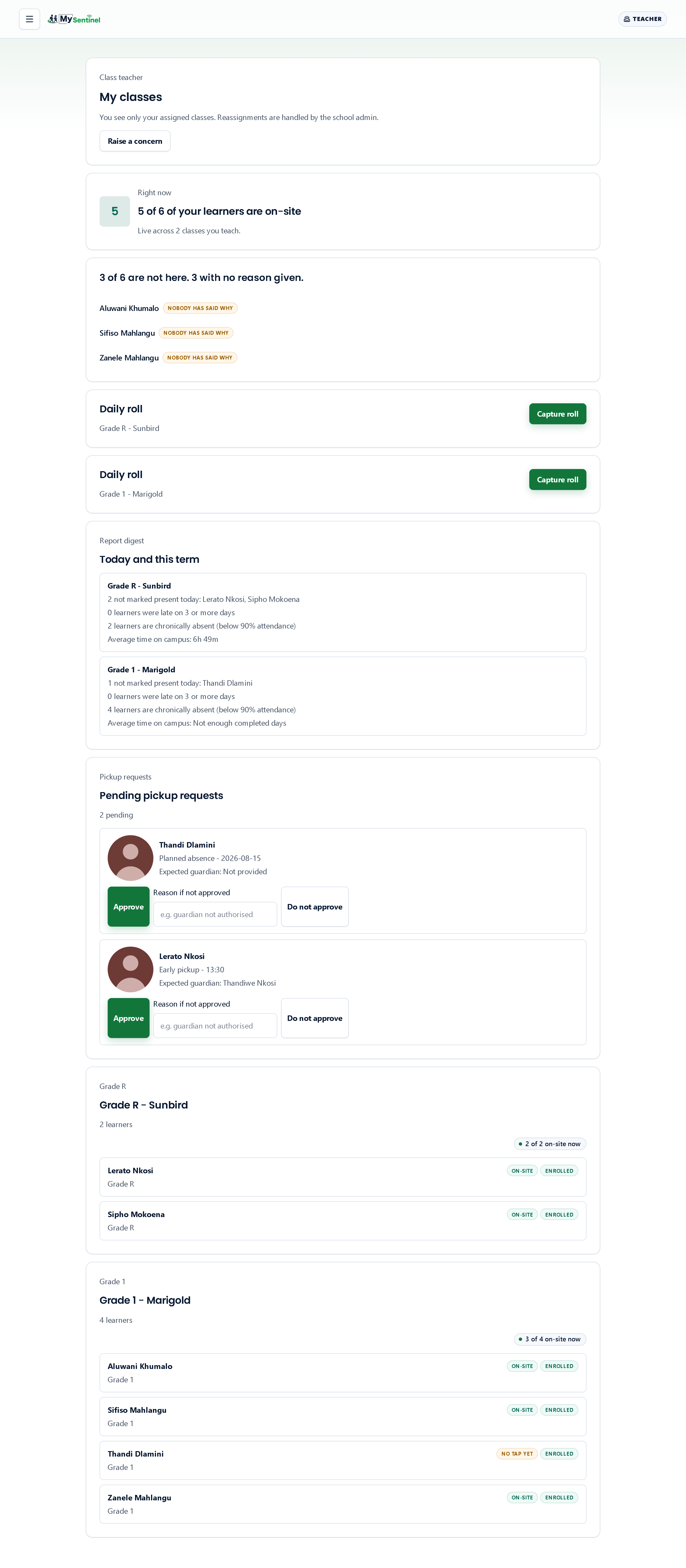
A class teacher lands on one screen when she signs in, and it is built to answer the question you actually open the app for: who is not in my room, and why. The sick notes waiting for you and the pickup requests you have to decide are on it too.
The register is not. It has a screen of its own now, and what this one carries instead is a single line per class telling you what you are walking into before you open anything — which is the whole reason it moved. The next chapter covers the register itself.
This page walks down this screen from the top.
The menu has two entries
Dashboard — this page. Learners — the searchable list of the children in your classes. That is the whole menu, and it is not a simplified view of a bigger one: the rest of the school’s workspace is not yours to reach. Type an address for the office’s screens and you are returned here.
The reason is that your view is defined by your classes rather than by the school. Everything you see, from the counts at the top to the requests waiting for a decision, has already been narrowed to the children assigned to you.
The top of the page
The heading reads My classes, under a small label saying Class teacher, and beneath it a line that sets the boundary in plain terms:
You see only your assigned classes. Reassignments are handled by the school admin.
Beside it sits a Raise a concern button. It is here, above everything else, because a worry about a child is not a queue item — it should never wait for you to find the right screen. Whatever you write goes to the school office with your name attached, and never to a parent.
Right now
The first panel is a single large number and a sentence: how many of your learners are on the premises out of the total on your registers — for example, 26 of 28 of your learners are on-site — with the line Live across 2 classes you teach. underneath.
This is the headline because it is the one figure nobody else can give you quickly. It is counted from badge scans at the gate, not from your roll, so it answers “how many children are physically here” rather than “how many did I mark”.
Who is not here, and why
The next panel is the one worth learning properly. It answers the question that sends a teacher looking for the app in the first place: there is an empty desk, and you want a name and a reason.
When nobody is missing it says so plainly — Everyone in your classes is here. Otherwise it opens with a count against the size of your roll, because “four absent” means something very different in a class of six and a class of forty, and it adds how many of those have nothing explaining them. For example:
4 of 28 are not here. 1 with no reason given.
Then the names, each with the reason beside it:
- the gate and the register disagree — the gate never saw this child, but the register says otherwise. A contradiction about whether a child is on the premises is a different and more urgent thing than nobody having phoned in, so it is never quietly folded in with the rest.
- nobody has said why — no note, no explanation, nothing. This is the one to chase, and it is named bluntly rather than dressed up.
- a parent sent a note — somebody told the school. The best answer there is.
- excused — the day is already accounted for.
They are listed worst-answer first, in exactly that order, so the top of the list is always the part that needs you. A row may also carry note not acknowledged yet, meaning a parent’s note has arrived but nobody has confirmed reading it.
Colour follows the same logic. The two answers that need you are amber; a parent’s note is green. None of them is red — a child whose parent phoned in is not an emergency, and spending the emergency colour here would make it mean less where it matters.
Sick notes waiting for you
If a parent has sent a note about a child in your classes, a panel headed Sick notes awaiting you appears above the roll. Each card carries the learner’s name, their class and when the note arrived, with an Acknowledge button.
The panel is not there when there is nothing waiting. That is deliberate: an empty tray you have to look at every morning teaches you to stop looking.
The register, as a line rather than a screenful
Below that, a panel headed Daily register carrying one line per class. The line names the class, says whether the register has been taken, and — this is the part that matters at twenty past seven — how many learners the gate could not account for.
A class whose register is still to be taken reads Register not taken with a count beside it, in amber, such as 3 learners need you. A class already filed reads Filed with the time, in green, and how many of the class it recorded as being in attendance. Either way the line opens the register.
The number counts learners, not questions. The learners the gate checked in and about whom nobody has said anything are one block you confirm in a single act, so they are not in that count. What is counted is the learners the gate could not answer for, because each of those is a name only you can settle.
Before this, the register itself sat here, in the middle of this page, with five mark buttons on every learner and both of your classes drawn at once. It was longer than everything else on the screen put together, and you scrolled past it to reach anything below. A line is the honest size for “here is what needs you”; the register deserved its own screen, and now has one.
Today and this term
A panel headed Today and this term summarises each class in four lines.
Who has not come through the gate today. Either All assigned learners have a mark today, or a count with the names — for example 2 not marked present today: …. This counts children who have been seen at the gate at some point in the past week or so but have not come through it today. Anyone whose planned absence you approved is left out of it, which is the practical reward for approving those requests.
Who is repeatedly late. How many learners were late on three or more days over roughly the last three months. A learner counts as late when their first scan of the day falls after the cut-off time your school sets.
Who is at risk on attendance. How many learners fall below ninety percent attendance across the same window, counting weekdays only. Days you approved as planned absences are removed from both sides of that sum, so an absence the school agreed to can never count against a child.
How long they stay. A line such as Average time on campus: 6h 42m, or Not enough completed days when there is not yet enough history to say anything honest.
These four are a term-scale view, not a today view. They are there so a pattern becomes visible before it becomes a problem.
Pickup requests waiting for you
Then Pending pickup requests, with a count. When there is nothing to do it says No pickup requests need your approval right now.
Each waiting request shows the child’s photo, their name, what is being asked and when, and which adult is expected. Deciding them is covered in the last chapter of this section.
Your classes, one panel each
The screen ends with a panel per class: the class name, its grade, how many learners it holds, and a summary such as 14 of 15 on-site now. Every child is listed with two chips — whether they are on the premises, and whether they are still enrolled.
This is the same information as the Learners page without the search box, laid out class by class. When you know the name you are looking for, the Learners page is faster.
When these numbers were true
The screen reads everything once, when you open it, and reads it again after you approve or decline a pickup request. It does not tick over on its own. If you have had the app open through a break and want to know who has come back in, reload the page.
Everything else on the screen — a roll you submit, a note you acknowledge — updates in place the moment it succeeds. What you see there is the answer from the school, not an optimistic guess by the phone.