

At the gate
The gate screen
The one screen you work from all day — what it shows, what the pill at the top means, and how a scan begins.
You work from one screen. It is called the Gate, it is the first thing you see when you sign in, and it has one job: read a learner’s badge and record whether they are arriving or leaving.
Everything else in this chapter is something that happens after a badge is read. Learn this screen and you can run a gate.
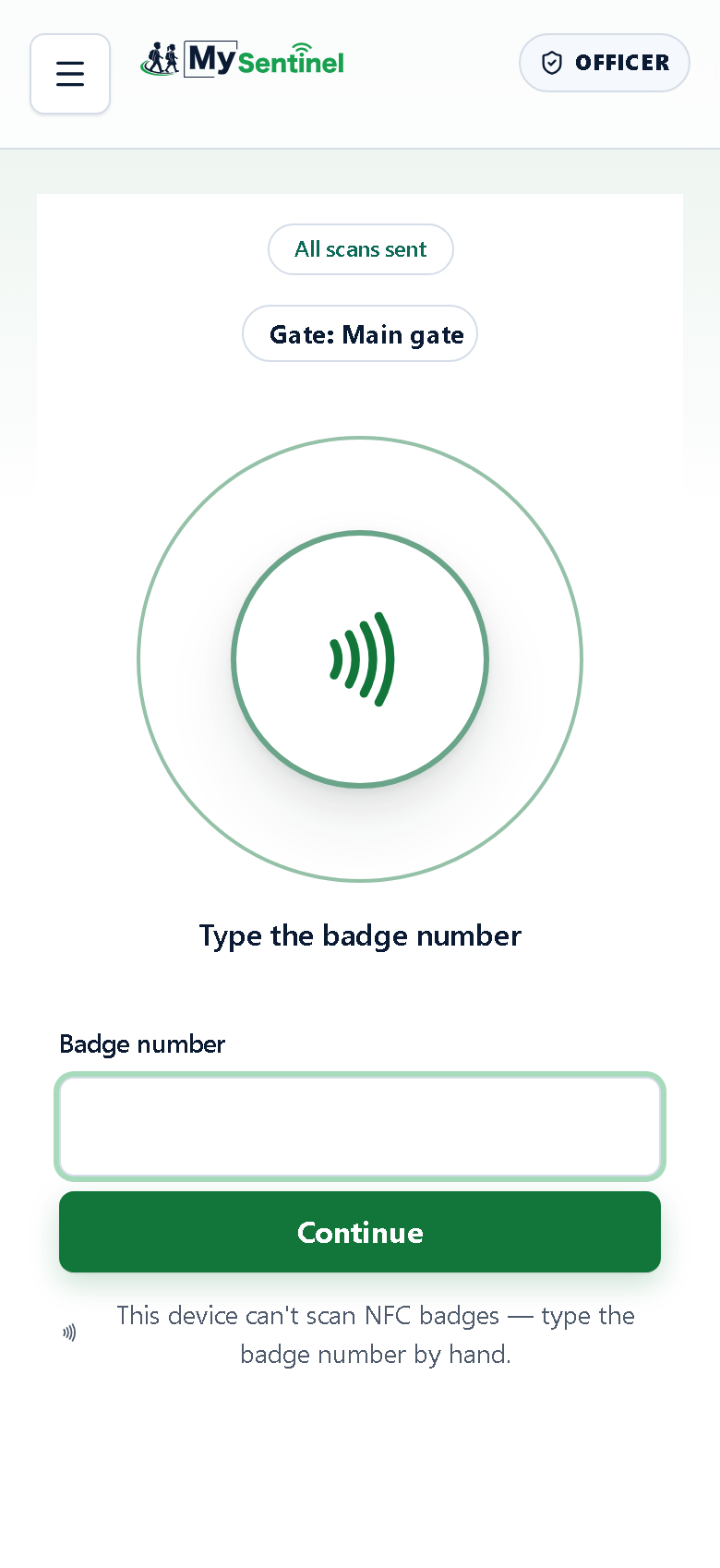
- The sync pill. Green means every scan has reached the school and none was refused.
- The scanner. On a phone that reads badges it is already listening.
- Manual entry, for when a tap will not read or the phone has no reader.
What is on it
Three things, from the top.
The sync pill. A single line telling you whether everything you have recorded has reached the school. It reads All scans sent when there is nothing outstanding. If something is still on the phone it turns amber and counts them — 1 waiting to send, 4 waiting to send. If the school looked at a scan and would not accept it, the pill says 1 scan needs your attention instead: that one is not waiting for a signal, it is waiting for you. Tap the amber pill either way to go straight to the list.
The gate chip. Which gate you are standing at — Gate: Main gate. Schools with more than one entrance ask you to pick yours before your first scan, and the chip is where you change it.
The scanner. The large circle in the middle. On a phone that can read badges it is already listening, and the line beneath it tells you where to hold the badge.
Where you hold the badge depends on the phone, and the screen tells you. On most phones the line reads Hold a badge to the back of the phone — the reader sits behind the screen, roughly in the middle. On an iPhone it reads Tap the badge against the top of the phone, because that is where an iPhone’s reader is. Follow the line on your screen rather than a habit from a different handset; holding a badge to the wrong edge is the most common reason a tap does not read.
If your phone asks for a nudge first, the line reads Tap once to start the scanner. Tap the circle once and it stays listening for the rest of your shift.
Scanning
Hold the badge to the back of the phone. That is the whole action — there is no button to press afterwards. The phone reads the badge and moves on by itself.
You never type a learner’s name, and you never have to remember whether someone is already inside. The phone works that out.
When a tap will not read
Some phones cannot read badges at all. On those, the scanner is replaced by a message saying so — This device can’t scan NFC badges — type the badge number by hand — and a Badge number box with a Continue button underneath.
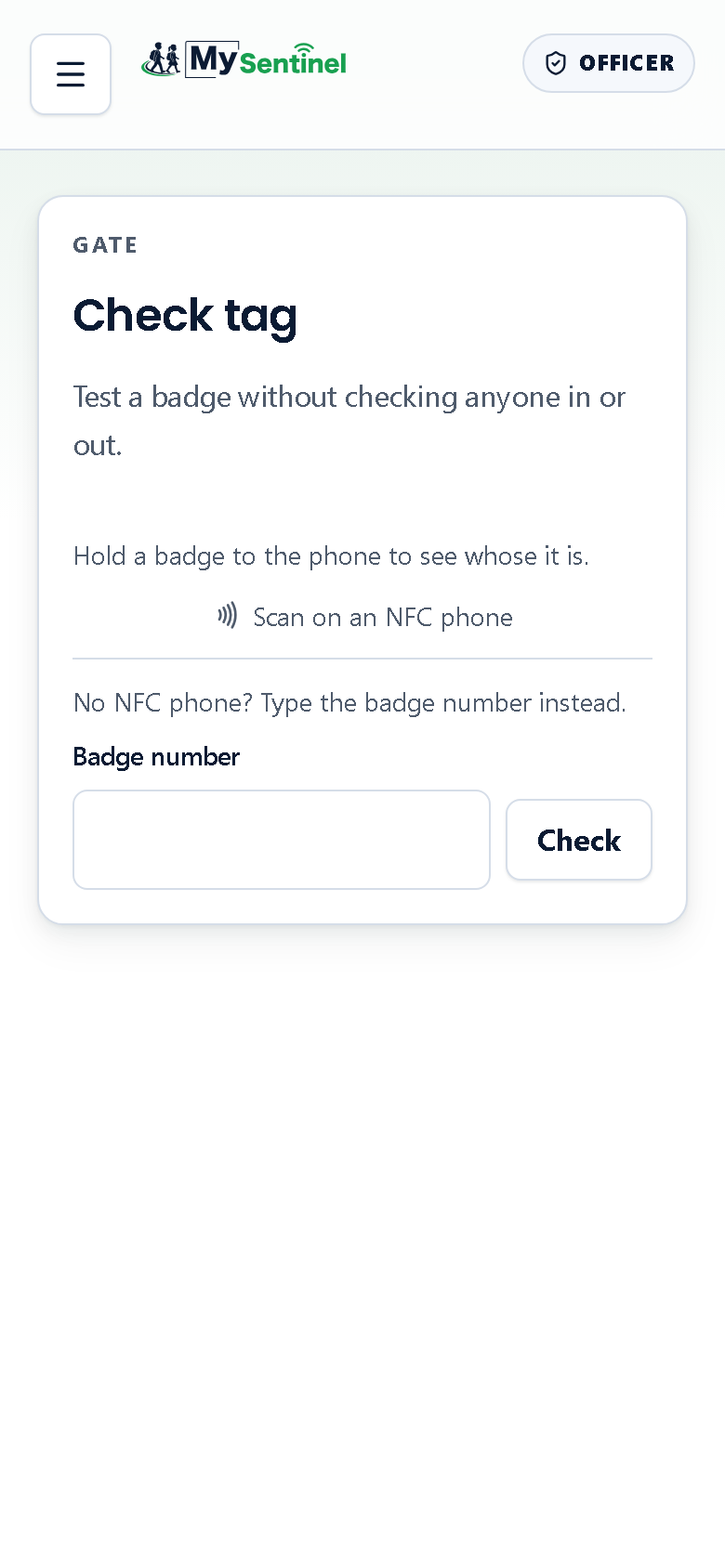
Typing the number does exactly the same thing as a tap. It is the slower path, not a lesser one, and it is always available even on a phone that normally taps.
Why the gate never makes you wait
The Gate is built to work at the speed of a queue of children, so it does not ask the school’s computers for permission before it answers you. It already has what it needs on the phone: who is on the roster, who is expected, what each badge means.
That is why a scan is instant even when the school’s internet is not, and it is why the sync pill exists at all — recording and sending are two separate things, and the pill is the phone being honest about the difference.
The next page follows what happens the moment a badge is read.