

For parents
What the parent portal is
A private link that shows you where your child is right now — no app to download first, no password to remember, and nothing to sign in to.
There is no app to download and no password to remember. Your school sends you a link. You tap it, and you are looking at your own children — where they are, when they arrived, and what the school has told you about them.
That is the whole idea. Most parents open it two or three times a term, usually because something has made them wonder. It needs to answer in one screen, on a phone, on a bad signal, without asking anything of you first.
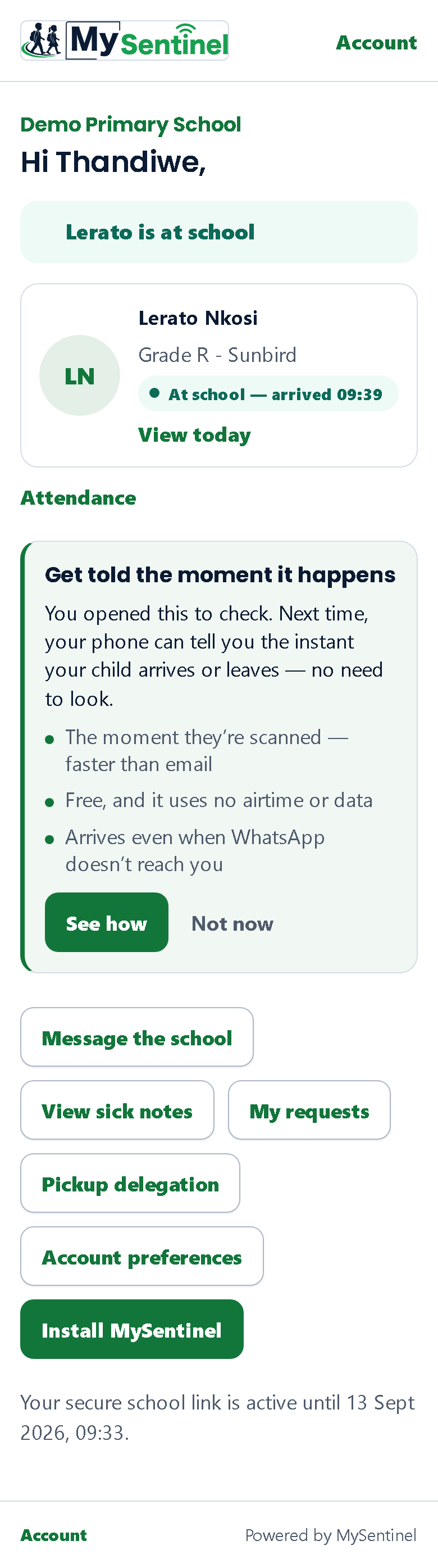
The answer, first
The first thing on the page is a single sentence, and it is the biggest thing on the screen. With one child it names them — Lerato is at school. With several it gives you one answer instead of making you read every row: Everyone’s at school, or Everyone has left school.
Nothing sits above it. The greeting is gone — it used to spend the biggest type on the page telling you your own name, above a vendor’s logo, above a school name, with the one fact you came for fourth from the top. You came to find something out, and the sentence that tells you is now the first thing you read.
When your children are not all in the same place, the sentence names the smaller group — the ones you are most likely to be asking about. Once that group is bigger than two it switches to a count, because a list of four names stops being readable at a glance.
There is one exception that always comes first. If any child has not been scanned at all today, that child leads the line, whatever everyone else is doing — No check-in for Sifiso yet today. Nobody having seen your child yet is a different kind of news from your child having gone home, and it is not folded in with the rest. It is the one case where the sentence is tinted amber, because it is the one case where it says something the rows beneath it do not.
From three children up, a quiet breakdown follows it — Today: 2 at school, 1 not arrived yet. With one or two children there is no breakdown, because with one or two children the rows underneath already are the breakdown, and a summary that summarises two items is just the same news read twice.
A row for each child
Then one compact row per child: their photograph if the school holds one, or their initials if not; their first name; and their status in large type with the time underneath it — At school, and beneath that since 09:41. A child who has gone reads Left school and at 14:30. A child nobody has scanned reads Not checked in yet.
The whole row is the tap. There is no separate link to open the child, and no second link beside it for attendance — attendance lives on the child’s own screen, which is where you are going anyway if you want it.
Colour carries the same meaning everywhere in this portal. Green means at school. Grey means away, or already left — calm, expected, nothing wrong. Amber means something is worth a look. Red is never used here at all; the school keeps red for emergencies, so that when you do see it, it means what it says.
Getting around
Three tabs sit fixed at the bottom of the screen, and they are on every screen that is about your family:
- Today — this page. Where your children are.
- Messages — everything that has passed between you and the school.
- Settings — how and when the school reaches you.
That is the whole of it. There used to be a list of buttons under your children naming every destination the portal had, which is a description of the product rather than a way to move around it. Three tabs, always in reach of your thumb, is a shape you learn once.
Whichever of the three you are inside, the right tab stays lit. Open a child from the front, and you are still under Today; open a form to tell the school something, and you are under Messages, because what you are writing will end up there. The two screens that are about your sign-in rather than about your children — asking for a fresh link, or being asked which account to open — show no tabs at all, since offering three destinations to somebody who has no session would only send them to three copies of the same message.
Because the tabs are always there, the portal has almost no back links. The one place a back control still makes sense is the attendance history, which has exactly one place to go back to — and it names it, so the control reads Back to Zanele rather than just the word back.
Underneath your children sits one quiet line offering to send this to your phone as a notification the moment your child is scanned. It is a sentence with a verb on the end, not a button and not a card, and it comes after the answer rather than before it — the moment to be offered something is just after it has proved useful. The chapter on putting this on your phone explains what it gets you.
What this page does not do
It reads once, when you open it. It does not tick over on its own while you watch. If you have had it open through a lunch break and want to know whether your child has come back in, move to another tab and back — the page asks again each time you arrive on it.
If your signal drops, it says so plainly and does not blame the school. The sentence reads You’re offline. Nothing new can load until your signal is back. The last answer you had stays on the screen above it, with a line saying when it was last updated so you know how old it is, and a Try again button waits underneath for your signal to come back. This matters more than it sounds. The page used to report a problem at the school and tell you to phone them — an instruction to make a call, given to a device that had just proved it could not reach anything.
It shows your children and nobody else’s. Every screen in this portal is limited to the children the school has linked to you, and that limit is applied by the school’s system, not by the page you are looking at. If a child of yours is missing, the school has not linked them yet — the page says so, and says to ask the school.
It is not a way to contact anyone in an emergency. It is a window onto what the school has recorded. In an emergency, phone the school.
In your language
The portal is available in English, Afrikaans and isiZulu. It follows whatever language your school has set for you, and you can change it for yourself — it is the first thing in Settings, and it is also a button in the header of every screen, so you are never more than one tap from reading the page in your own language. Changing it changes the messages the school sends you as well, not only what you see here.