

For parents
Putting it on your phone
Adding MySentinel to your home screen, turning on notifications, what they cost you, and what happens on an iPhone — where the three taps are not optional.
Everything in this portal works in an ordinary browser, and you can leave it that way. This chapter is about the one upgrade worth taking: putting MySentinel on your home screen and letting it tell you things without being asked.
Why bother
Three reasons, and the page leads with them rather than burying them.
They are instant. A notification arrives the moment your child’s badge is scanned, which is faster than an email and much faster than you thinking to check.
They cost you nothing. No airtime, no bundle, no data worth measuring. That matters more than it sounds: a parent who is careful with data can have every arrival and departure for free, and never think about it again.
They arrive when other things do not. WhatsApp numbers change, inboxes fill up, messages get filtered. A notification goes straight to the phone in your hand.
What you will actually get
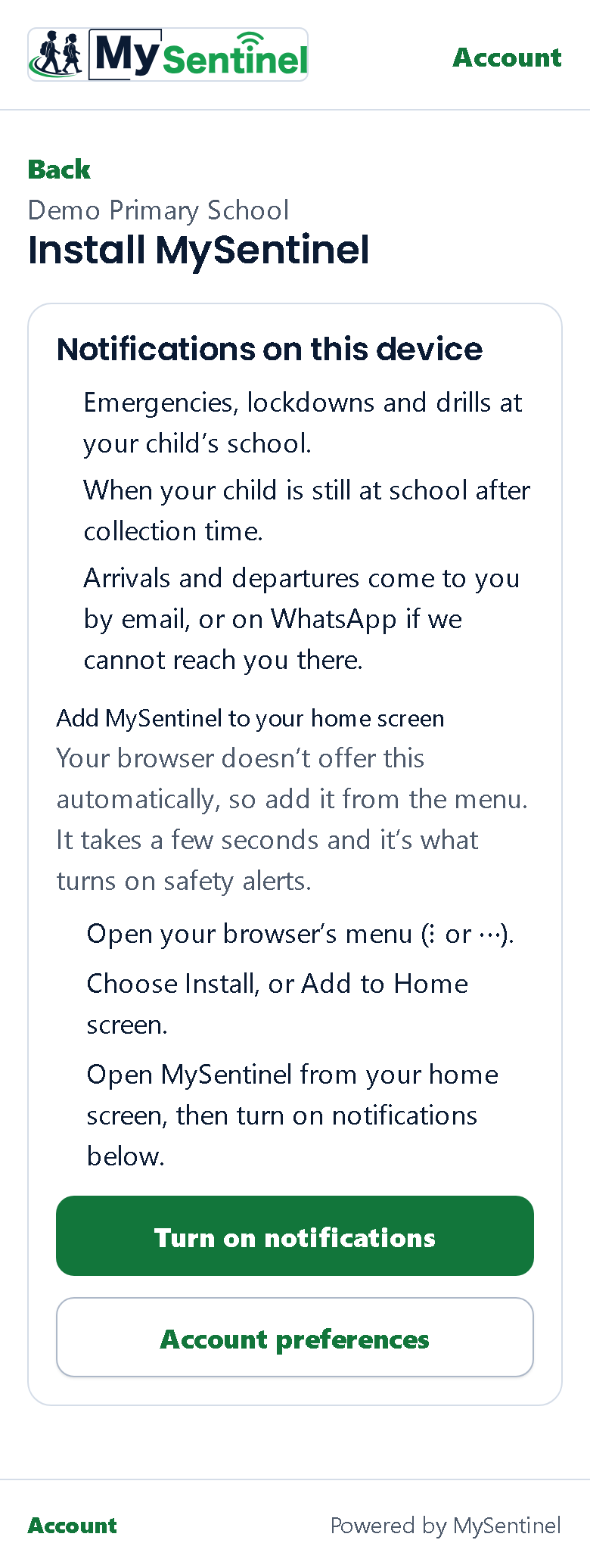
The page lists three things, and the third one changes depending on where you are in the process — which is the point.
Emergencies, lockdowns and drills at your child’s school. Then, when your child is still at school after collection time. Those two are always true.
The third line is about ordinary arrivals and departures. Before you have turned notifications on, it tells you the truth: they come to you by email, or on WhatsApp if the school cannot reach you there. Once notifications are on, it changes to say they arrive the moment your child is scanned.
The page will not promise you something it cannot deliver. It reads the state of your own phone and describes that.
On an Android phone
Most Android browsers can do the whole thing in one tap. The button reads Install and turn on, and it puts MySentinel on your home screen and asks for notification permission in one go.
If your browser does not offer that — some do not, by design — the page switches to showing you the three-step route instead: open the browser’s menu, the ⋮ or ⋯ one, choose the install option, then open MySentinel from your home screen and turn notifications on from there. The wording of that menu item differs between browsers, so the page describes where to look rather than naming a button that might not be there.
On an iPhone or iPad
This is the part that catches people out, and it is not the school’s doing.
On Apple devices, notifications only work once the site is on your home screen. From a Safari tab there is no permission to grant — the ability does not exist yet. So the page gives you the three taps that create it: the Share button at the bottom of Safari, then the option to add it to your home screen, then open MySentinel from the home screen rather than from Safari. Come back to this page from there and the button to turn notifications on will be waiting.
It takes well under a minute, and it is the only route there is.
Turning them on
However you got here, the last step is one button and one permission prompt from your phone.
The moment it works, you get a notification straight away — Notifications are on ✓, with a line saying this is how a check-in will look on your phone. That is deliberate. Being told a setting is enabled is not the same as seeing the thing it enables, and you should not have to wait until tomorrow morning to find out whether it worked.
If you say no to your phone’s prompt, nothing breaks and nothing is lost. The page says so: your email and WhatsApp messages carry on exactly as before, and you can come back and turn notifications on at any time.
If something goes wrong the page says which kind of wrong in plain words — your browser cannot do notifications at all, or your browser could not reach its own notification service and it is worth trying again in a few minutes. In every one of those cases the message ends the same way: your email and WhatsApp messages are not affected.
One thing that is not among the reasons: your school. Phone notifications are not something a school switches on or off — they are on for every school from the first day. Whether they reach you depends only on your own phone, your browser, and your saying yes when it asks.
Afterwards
Notifications are per device. Turning them on on your phone does not turn them on on your tablet; do it again there if you want both. Settings counts how many devices you have, and can turn them off on the one you are holding.
The one line on the front page
You will also meet a much smaller version of this offer on the front page of the portal — one sentence under your children, naming a child where there is only one: Get told the moment Zanele arrives or leaves., with Turn on notifications on the end of it, or See how on a phone that needs the steps above first. Not now puts it away, and it stays away for weeks rather than asking again on your next visit.
It is a line, not a card and not a button. It used to be a card taller than two of your children, and it was one of three separate invitations you would meet on a single visit — the third being a filled button on the landing screen that was the only filled button there, so the loudest thing on the page a parent opened to find their child was the app asking to be installed. The other two are gone.
It also comes after your children rather than before them, which is the whole point: the moment to be offered something is just after it has proved useful, not before you have been given what you came for.