

For parents
Telling the school something
The one button that covers everything a family tells a school, what a sick note does to the register, the single list that holds every message and reply, and what happens when something does not get through.
A sick child at seven in the morning is not the moment for a form. So the commonest thing a parent needs to tell a school is two taps, and everything else starts from the same button.
One button, five choices
On your child’s page there is a single button: Tell the school…. It opens a panel that slides up from the bottom of the screen, names the child at the top so the choices underneath do not each have to repeat it, and offers five things:
- Sick today
- Will be late today
- I’m fetching them early
- Someone else is fetching
- Something else
They are ordered by how often a family needs them, not alphabetically and not by how the school’s system groups them: a sick day is by a wide margin the most common thing a parent tells a school.
The two that open a request form — arriving late, and fetching early — open it already filled in for the child whose page you came from, so you never pick that child a second time from a list. A sick day needs no form at all, only a confirmation. The last two lead to the pages where a collection is arranged and where a message is written.
This replaced four separate buttons on the child’s page — three of them looking identical, two of them about pickups — plus more on the front page pointing at the same subject from a different direction. Several doors, three vocabularies, and one thought behind all of them.
Reporting a sick day
Tap Sick today and the panel asks you one question before it does anything:
Tell the school that Zanele is ill today?
Say yes and it sends. Nothing else is asked — no date, no reason, no box. The day is not yours to choose in any case: the school takes it from the moment the note arrives.
That single question exists because a sick note is the one thing here you cannot take back. There is no way to withdraw it from your side, it excuses a day on the register, and it used to fire on the first tap — which meant a phone in a pocket could tell a school a child was ill. Everything else in the panel opens a form you can abandon; this one commits, so it asks.
The page answers where you are standing:
The school has received the sick-day note.
with a link to your messages beside it. No reload, no email to write, no wondering whether it went.
And if it did not go, it says that instead. If the note reached nobody — which happens when the contact details the school holds for you no longer match any child on their roster — you are told plainly that it was not recorded and what to do instead: phone the school on the number shown, or, if the school has given no number, send them a message so they know. That honesty is newer than it should be. For a long time the screen thanked you for the note either way, which is the single worst thing this product could do: a parent believing they had told the school something they had not told them.
What that note actually does
It does more than land in an inbox. The moment it arrives, the school’s register treats that day as explained for your child — provisionally, until somebody at the school confirms it. Your child stops appearing on the list of children who are missing with no reason given, which is the list the school chases.
Two useful consequences follow. Your child’s class teacher sees the note waiting for them and can mark it as seen, which is what puts Sick note acknowledged by the school on that day in the attendance view. And if your child was in fact scanned at the gate that day, the school is told that the note and the gate disagree, rather than one of them quietly winning. That contradiction is worth somebody looking at, and it is treated as such.
What the note does not do is settle the day for good. Only the school can finally excuse an absence. The note gets your child out of the “nobody knows” pile and puts the decision in front of the right person.
Everything you have said, in one place
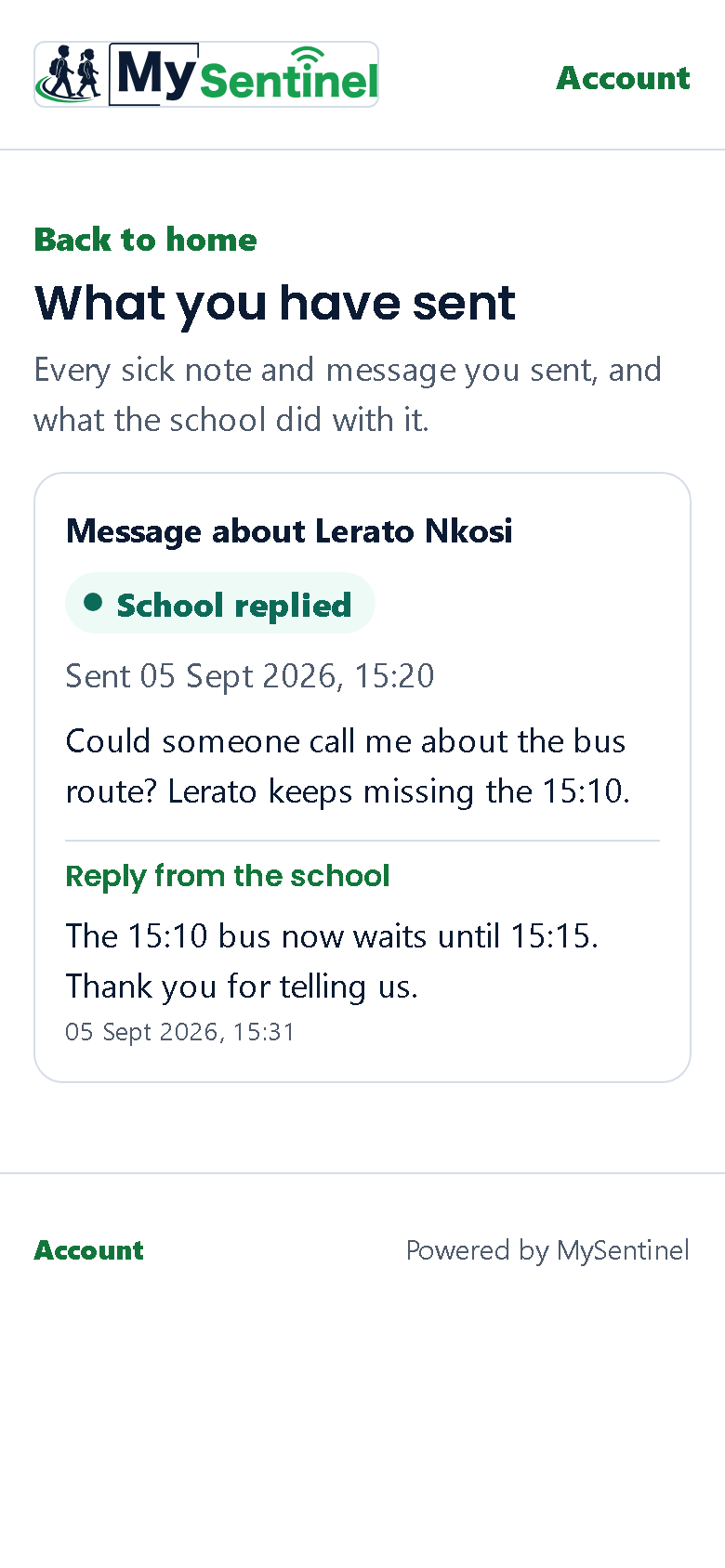
Messages is the middle tab, on every screen. It holds one list, and that list is everything that has passed between your family and the school: sick notes, messages you have written, requests to fetch a child early or to say they will arrive late, and arrangements for somebody else to collect them.
Anything still live is pinned above the rest under Happening now — a request nobody has answered yet, an approved pickup that has not happened, a collection arrangement that is still in force with the gate code somebody has to say this afternoon. Everything settled falls below it under Earlier, newest first.
That split is the one deliberate departure from a plain diary. A list ordered purely by date is right for things that happened and wrong for things that are still true: an arrangement made on Monday for Friday sinks under Tuesday’s sick note the moment the week goes quiet, and it is the thing you opened the app to check.
Each entry says what kind of thing it was, names the child, gives the day, and — for a note or a message — shows your own words back to you, so weeks later you are reading what you actually wrote rather than a date and a tick. Beside it sits where it has got to, in one vocabulary for all of them: Sent, Seen by the school, Replied, Waiting for the school, Approved, Not approved, Done, Expired, Cancelled, Active now, Stopped.
Where the school has replied, the reply is printed underneath what you wrote, so the answer and the question sit together and read as a conversation. That is the best moment in this product — a real reply from a real person at the school — and it used to be two taps deep behind a heading that named a filing cabinet.
A Tell the school… button sits at the top of this list too, so a parent who has just read a reply does not have to work out that the way to say something back is to go to the front page and tap a face. With one child it takes you straight to their page. With more than one it asks which child first, because everything a family tells a school is about one child, and a form that has to ask that halfway through is a form that gets answered wrongly.
This list replaced three separate destinations — one for notes and messages, one for pickup requests, one for collection arrangements. They were one thing split by which part of the school’s system happened to store it, and no parent sorts their own messages that way. Each of the three still works if you have an old link to it, and a notification that names a particular request still takes you straight to it; what changed is where the app itself sends you.
If one part of the list cannot be loaded, the rest still appears. Three different parts of the school’s system answer this screen, and a slow one is not allowed to blank the two that answered — the page says it could not load everything, and shows you what it has.
Anything else
Something else in the panel is for everything the other four do not cover — a change of address, a note for the class teacher, a heads-up that your child will be away on a named day, a question.
It is one box, up to a thousand characters, with the count shown as you type. Tap Send message and the page tells you it landed. Send another message starts a new one.
Where the school has given a number, the page is honest about what it is not: a line under the box reads Emergency? Call, with that number after it.
Take that literally. Messages here reach the school office when somebody there next looks. There is no promised reply time and no ringing phone at the other end. For anything urgent, phone. The line used to tell you to phone the school without naming which school or on what number, which is an instruction with the one thing you need to follow it taken out. It names the number now, or it does not appear at all.
As with a sick note, a message that reaches nobody is reported as one. You are told it did not get through, given the school’s number if there is one, and — the part that matters most — your words are still in the box, so you have not lost what you wrote while you find another way to send it.
Two things worth knowing about how it behaves. Your message goes to the same place your sick notes go — the school office’s own inbox — and it lands in the same list, alongside them, with your own words and any reply the school sends. That was not always so: for a while a message you sent appeared on no page you could open, which meant a reply from the school arrived with nothing to attach it to. And when the school writes back, their reply also comes to you the way their other messages do: on your email or your WhatsApp, wherever they can reach you.