

The classroom
Your learners
The class roster — what a learner's row tells you at a glance, and the two things you can do from it without leaving the list.
Learners in the menu opens the roster: every child in every class assigned to you, in one list, headed Learners in my classes. If you teach two classes it is one combined list rather than two — this is the screen for when you know the name and want the child, not the class.
Back to class dashboard at the top returns you to the dashboard.
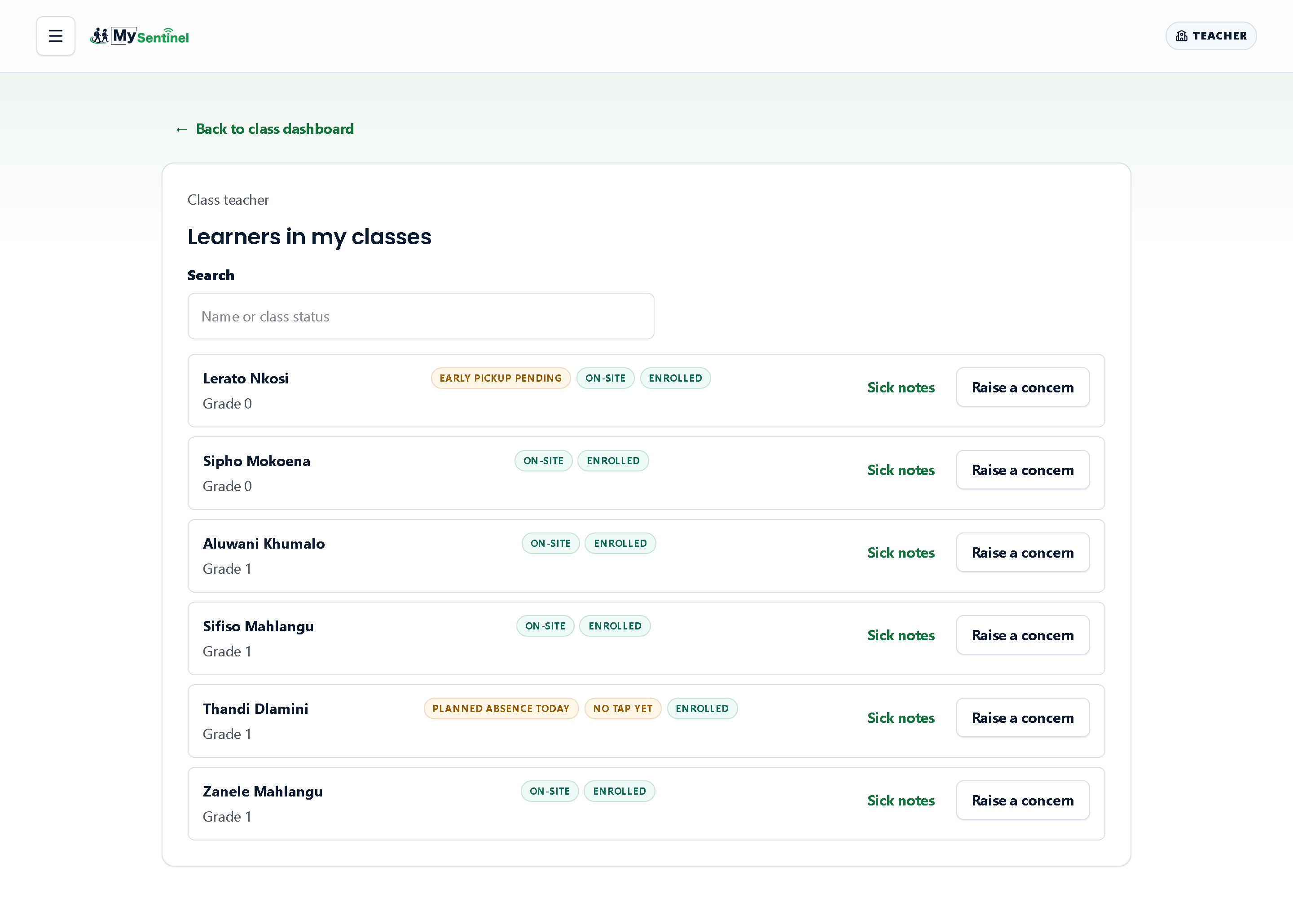
Finding somebody
There is a single Search box, with the hint Name or class status. It matches on the name and on the enrolment word, so typing part of a name narrows the list, and typing the word for an inactive record gathers those together.
If nothing matches you get No learners match this search. rather than an empty screen that leaves you wondering whether it is still loading. If you have no learners at all yet, the list says so and tells you who to ask:
No learners are assigned to your classes yet. Ask your school admin to assign learners to your class.
Assigning children to classes is the office’s job, not yours. That is why the empty state points at a person rather than at a button.
What a row shows
A row carries the child’s name, their grade underneath — or Class learner where no grade is recorded — and then up to three chips on the right.
Whether something is expected today. If a request is still waiting for a decision, the row says Planned absence today or Early pickup pending. This is so a name you are about to chase turns out to be a name somebody has already explained.
Whether they are on the premises. Three possible answers, from the gate: On-site, Off-site, or No tap yet.
The colours matter here and are worth reading deliberately. On-site is green: confirmed, the gate saw them. Off-site is a plain neutral grey, not red — a child who has gone home at the end of the day is exactly what should happen, and colouring it as a problem would train you to ignore it. No tap yet is amber: the gate has no record of this child today, and that is the one nobody can account for.
Whether they are still on the register. Enrolled or Inactive. An inactive record is a child who has left or been withdrawn; they stay listed so that history still makes sense, but the chip makes the distinction unmissable.
The two things you can do from a row
Sick notes opens that child’s note history without leaving the list. It shows The last 90 days — roughly a school term, which is the window the question “how often has this child been off sick lately?” is really asking about. Each entry is a date and what the school did with it: Received while nobody has picked it up yet, then Seen by the office, Handled, or Dismissed. If there are none, it says so.
Notice what is not there: no message text and no sender. You are shown the pattern — how often, and whether anybody acted — and not the family’s correspondence. That is a deliberate line. A pattern is what a teacher needs to spot; the contents belong to the office.
Raise a concern opens a short note attached to that child. It states its own rules at the top, and they are worth taking literally:
It goes to the school office with your name on it. It does not reach any parent.
You write in a box labelled What are you seeing? and send it with Send to the school office. The child’s name is shown as context and cannot be edited — the system attaches the name and your identity itself, so a concern can never arrive misattributed. When it has landed you are told exactly where it went: Sent to the school office. It is in their inbox with your name on it.
The same button exists on your dashboard, where it sends a concern with no child attached — for the times the worry is about the class or the school rather than one learner.
What the roster is not
It is a list of children, not a contact book. No parent phone numbers, addresses or identity numbers appear anywhere on this screen, and there is nothing to open that reveals them. Reaching a family is the office’s job, and the system is built so that you never need to hold their details in order to do yours.