

The school workspace
The learners in your school
The roster, one learner's record and its four tabs, and the two actions on that record that ask for your passkey before they will save.
Everything the system does begins with a learner record. A badge scan at the gate is only meaningful because a record says whose badge it is, which class they are in, and which adults may be told about them or collect them.
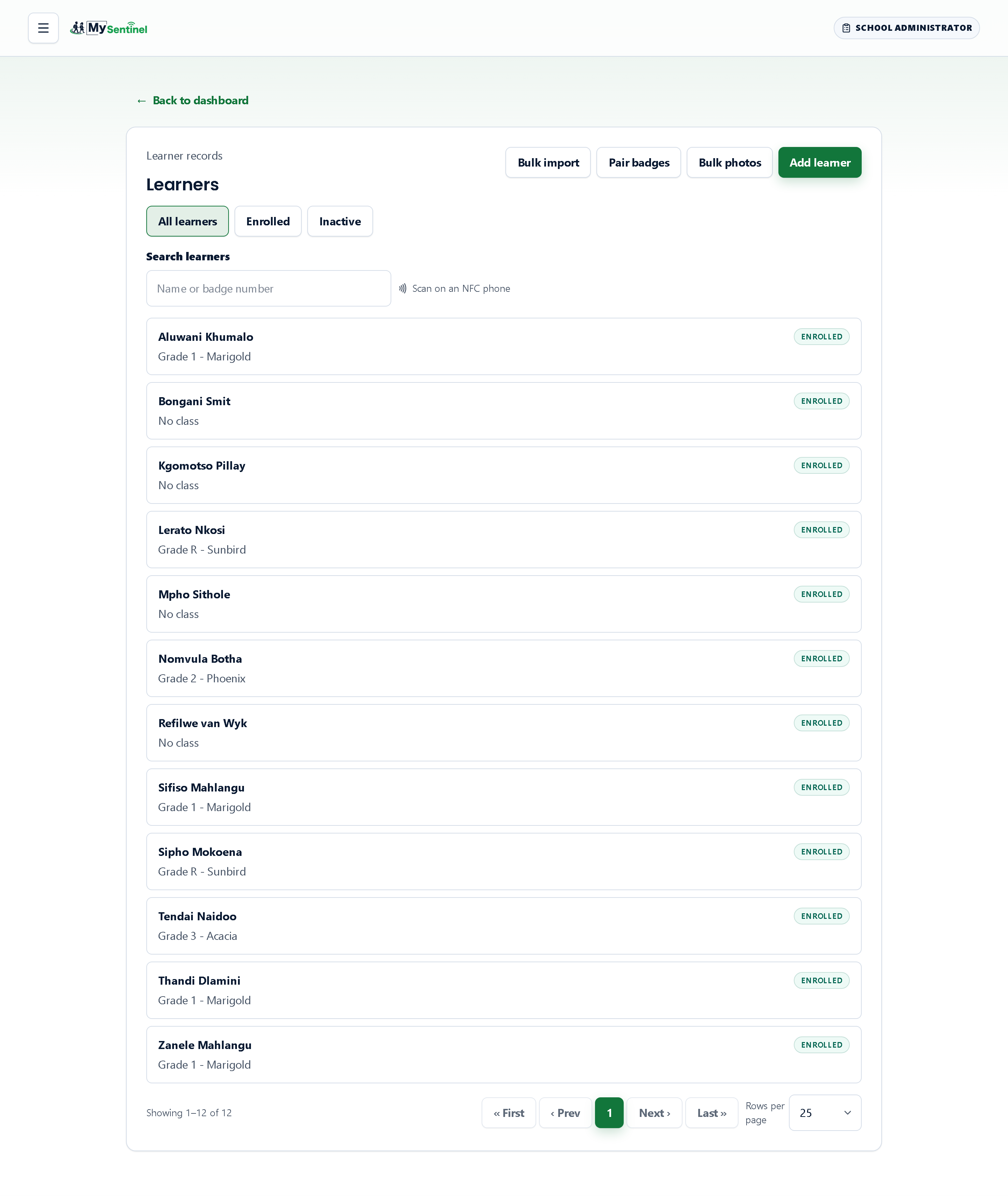
The roster
The list is headed Learners and opens showing everybody. Three buttons above it switch the view — All learners, Enrolled and Inactive. Inactive is not deleted: the record and its history stay, but the gate will refuse the badge and tell the officer an administrator must reactivate it.
The search box, Search learners, matches a name or a badge number, and a Scan to find button sits beside it. On a phone that reads badges, holding a found card to the back of it fills the search with that card’s number — the quickest way to work out whose it is.
The list shows twenty-five learners to a page by default. Each row carries the learner’s name, their class, and a chip reading Enrolled or Inactive.
Four buttons sit at the top right, and they are four different ways of getting learners into the system:
- Add learner opens a small form asking for a name, a class and a badge — the right tool for one new arrival mid-term. The badge field also accepts a tap.
- Pair badges walks every learner who has no badge, class by class. You scan a card, it saves and the next learner appears. It is the tool for handing out a box of new cards, and it tells you when the box is empty.
- Bulk photos takes a folder of photographs named by learner number and matches each file to its learner. Photographs go through the same checks as a single upload.
- Bulk import is labelled for a spreadsheet but does something narrower: it opens a registration-desk flow headed Scan next badge, which creates learners one card and one name at a time and keeps a running count of the session. For a whole school at once, use the roster import in the Advanced menu instead.
There is also a single-record version of the same thing, headed Scan-to-create learner, reached when a badge is tapped that the system does not recognise.
One learner’s record
Opening a row gives you a record with four tabs: Overview, Badges, Movement history and Guardians.
Overview carries the photograph, the badge number, the enrolment status and the grade. Two buttons above it jump straight to that learner’s activity trail and to their full check-in and check-out history, both pre-filtered — you never have to retype a name into a filter.
Photographs have their own two buttons, Upload / replace and Delete photo, and a line stating that they are protected and only visible to authorised school staff. That is not a promise about intent; the images are encrypted with a key belonging to your school.
Beneath the photograph is a short form for the name, the badge number and the status, with a Save learner button.
Badges is headed Badge lifecycle and notes that primary and spare badges both work at the gate. It lists every card issued to this learner with its status, lets you add another, mark one lost, or make a spare the primary — and it keeps the retired ones with the reason they were retired, so a card handed in at the office can be traced back.
Movement history shows this learner’s own check-ins and check-outs, newest first, with the guardian, the source and the badge used on each. The page says plainly that these records are read-only and cannot be edited or deleted, which is the point of keeping them. Guardians is covered in its own chapter.
The two actions that ask for your passkey
Most edits on this record save the moment you press the button. Two do not, and the difference is the same one you will meet everywhere in the workspace.
The first is the Custody arrangement flag. Turning it on, with the staff-only guidance that goes with it, makes an amber banner appear at the gate before an officer hands this child to any adult. The guidance is never shown to a parent.
The second is the panel headed Who may not collect. Here you name the adults who may not collect this learner and say why. A named adult disappears from the officer’s list of choices at the gate — on the device as well as online, so it holds even if the connection does not. Lifting a restriction, and authorising a single collection in spite of one, are separate actions on the same panel.
All four of those writes — setting the custody flag, adding a restriction, lifting one, and authorising a one-off collection — are stopped by the system until you confirm with your passkey. Your device asks you for a fingerprint, a face or a device PIN, and only then does the change save. Nothing happens if you cancel.
The reason is blast radius rather than fussiness. Each of them changes who is allowed to walk away with a child, and none of them should be possible by mis-tapping a phone in a busy corridor. An authorisation to release a child to a restricted adult is recorded against your name, the officer’s name and the reason you typed, it lasts one collection, and the restriction is back in force immediately afterwards.