

The school workspace
Proving what happened
The three evidence screens — the check-in and check-out timeline, the school activity log, and the exports that turn either into a file somebody else can read.
Sooner or later a parent, a governing body or an inspector will ask a school to show its working. Three screens in the Advanced part of your menu are built for exactly that, and they answer three different questions: what happened at the gate, what a member of staff did in the system, and how to hand either of those to somebody outside it.
What happened at the gate
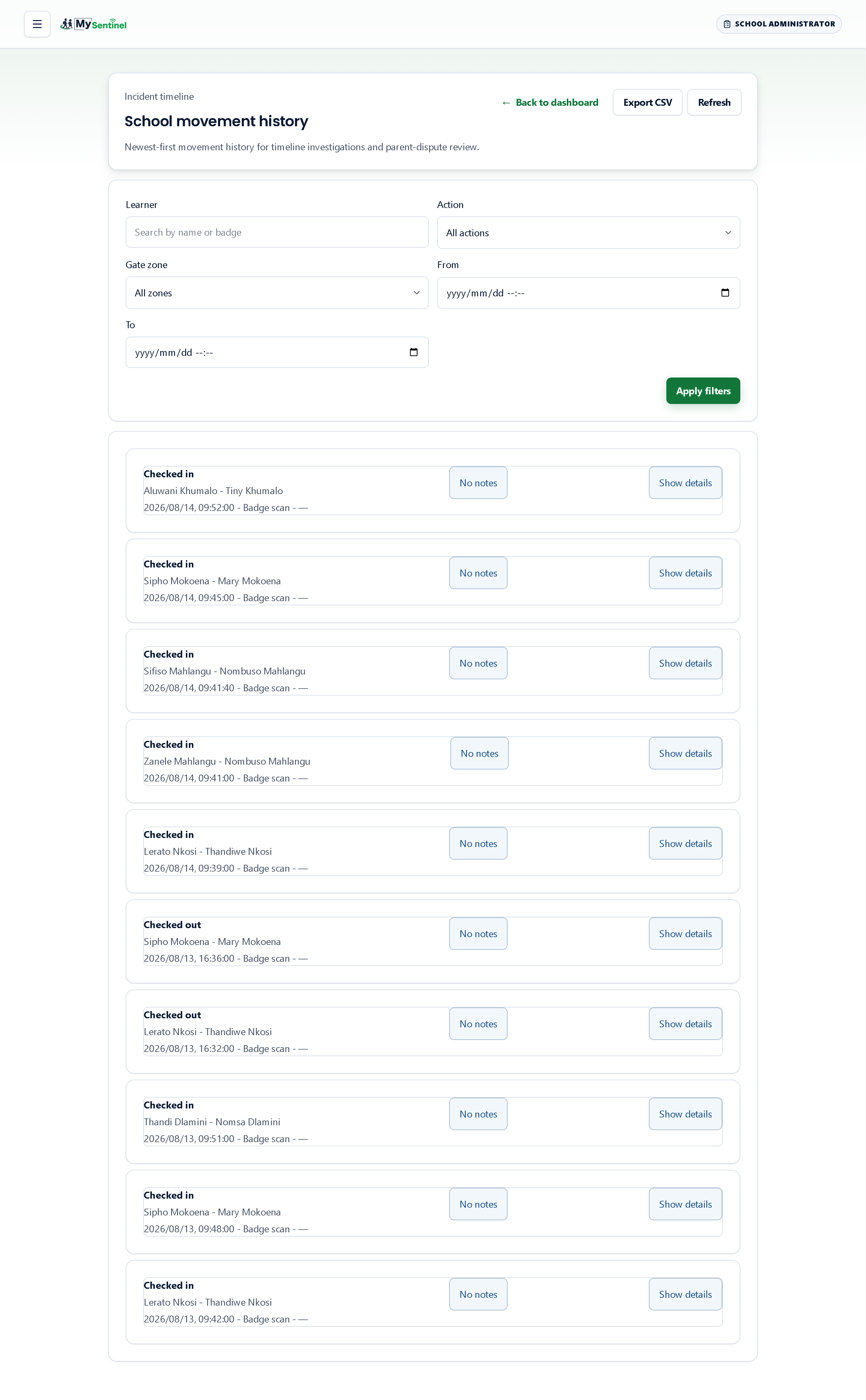
School movement history is the timeline. It describes itself as being for timeline investigations and parent-dispute review, which is precisely when you will want it.
Five filters narrow it: a learner picker, whether you want check-ins, check-outs or both, which gate the scan happened at, and a from-and-to time range. Deep links from elsewhere in the workspace arrive with the filters already set — the button on a learner’s record opens this screen showing only that child.
Each row gives you the action, the learner, the adult recorded with them, the exact time, how the record was made and which gate it was made at. Opening a row adds the support reference, the unrounded timestamp, and three buttons: open that learner, open the activity trail for that exact request, and see whether the guardians were successfully told.
That third one is the reason this screen and the notifications screen belong together. A dispute about a child leaving early is usually two questions — did it happen, and were we told — and this is the one route that answers both without retyping anything.
Rows also carry notes. Any row can be annotated, and the count of notes on it shows on the row itself, so the office’s own account of an unusual afternoon lives next to the record rather than in somebody’s diary.
What staff did
Admin audit events is the school activity log. Its subtitle sets the tone: review important school changes, with technical details available only when you open a row. The top-level view is deliberately readable — the plain-language name of what happened, what kind of record it touched, when, and the role of the person who did it.
Filter by a time range, an activity type or a record type. A panel headed Activity counts summarises the window before you read a single row, which is usually enough to tell whether the thing you are looking for is even in the range you picked.
Open a row and you get the record reference, the staff reference, the support reference, the exact time, and the full technical detail of the change. Where the row is a note added to a gate record, a button takes you straight to it.
This log is the answer to “who changed this?” — a guardian removed, a setting altered, a message resent, a restriction lifted. Every action in this chapter that asks for your passkey lands here with your name on it, which is the other half of why those confirmations exist.
Getting it out of the system
Reports has three tabs and replaces the old exports screen entirely; an old link to that address now lands here with its filters intact.
Generate now produces a CSV immediately. Eight report types are offered: attendance for a day, check-in and check-out history, audit events, learners late more than a given number of times, time on campus, no-shows, guardian participation, and chronic absenteeism. Each type reveals only the filters that apply to it — a class, a grade, a date range, a grouping by class or grade.
The Export CSV buttons on the attendance, timeline and activity-log screens all come here with the filters you were already using carried across, which is almost always faster than rebuilding them.
Below the form, a panel of recent exports records what each one was, when it was made, how many rows it contained and a content fingerprint. That fingerprint is what makes an export evidence rather than a spreadsheet: the same file can be shown, months later, to be the file that was produced on the day.
Scheduled turns any of those reports into a standing job — daily, weekly on a chosen day, or monthly on a chosen date — emailed to an address you name. This is the right home for the return somebody has to compile every Friday.
Stakeholder pack is different in kind. It produces a branded monthly PDF for a principal or a governing body, with attendance by grade, late arrivals, safety incidents and drills, visitors, how the school’s guardian messages went out, and the state of the badge fleet. The notifications table counts messages, how many were sent and how many failed — and says in one line that “Sent” means the message left the school’s system, not that it was read. Email and SMS give no read receipt, so a pack that claimed one would be claiming something nobody can check. You choose the audience and the month, and can have it emailed to you on the first of every month.
Reach for the stakeholder pack when somebody wants to understand the school, and for a CSV when somebody wants to check it.