

The school workspace
Making sure parents actually hear
The order the channels are tried in, what each delivery outcome really means, and exactly what to do when a parent tells you they were never told.
This is the screen a school ends up defending itself with. A parent says nobody told them their child left early; you need to know within a minute whether that is true, and if it is, why.
How a message finds a parent
Almost nothing is broadcast to every channel at once. A safety message is, because the cost of one family missing a lockdown is unbounded. The weekly summary is too, but only because its two channels are the free ones: the app notification is a pointer at the digest rather than a copy of it, so a family that tapped the notification has still not been sent the summary. And a school may opt its own routine arrival and departure traffic up to every channel, which is a setting someone chose and can unchoose. Everything else climbs a ladder and stops at the first channel that works, which is why most families never receive a duplicate.
For routine traffic — an arrival, a departure — the order is the app notification first, then email, then WhatsApp, then SMS. The free channels are tried first on purpose. Every family reached by an app notification or an email is a WhatsApp message the school never pays for.
For the messages where an hour’s delay defeats the point — a late pickup, a morning absence nudge, the outcome of a pickup request — WhatsApp moves above email. That costs more, and buying reading-in-minutes is what it is for.
A channel a parent cannot actually be reached on is dropped from the ladder rather than tried and failed. If they have no app notifications, that rung simply is not attempted, so it never appears as a failure.
Safety messages have no ladder at all. They go to every eligible channel simultaneously, and no school setting can hold one back.
The Notifications screen
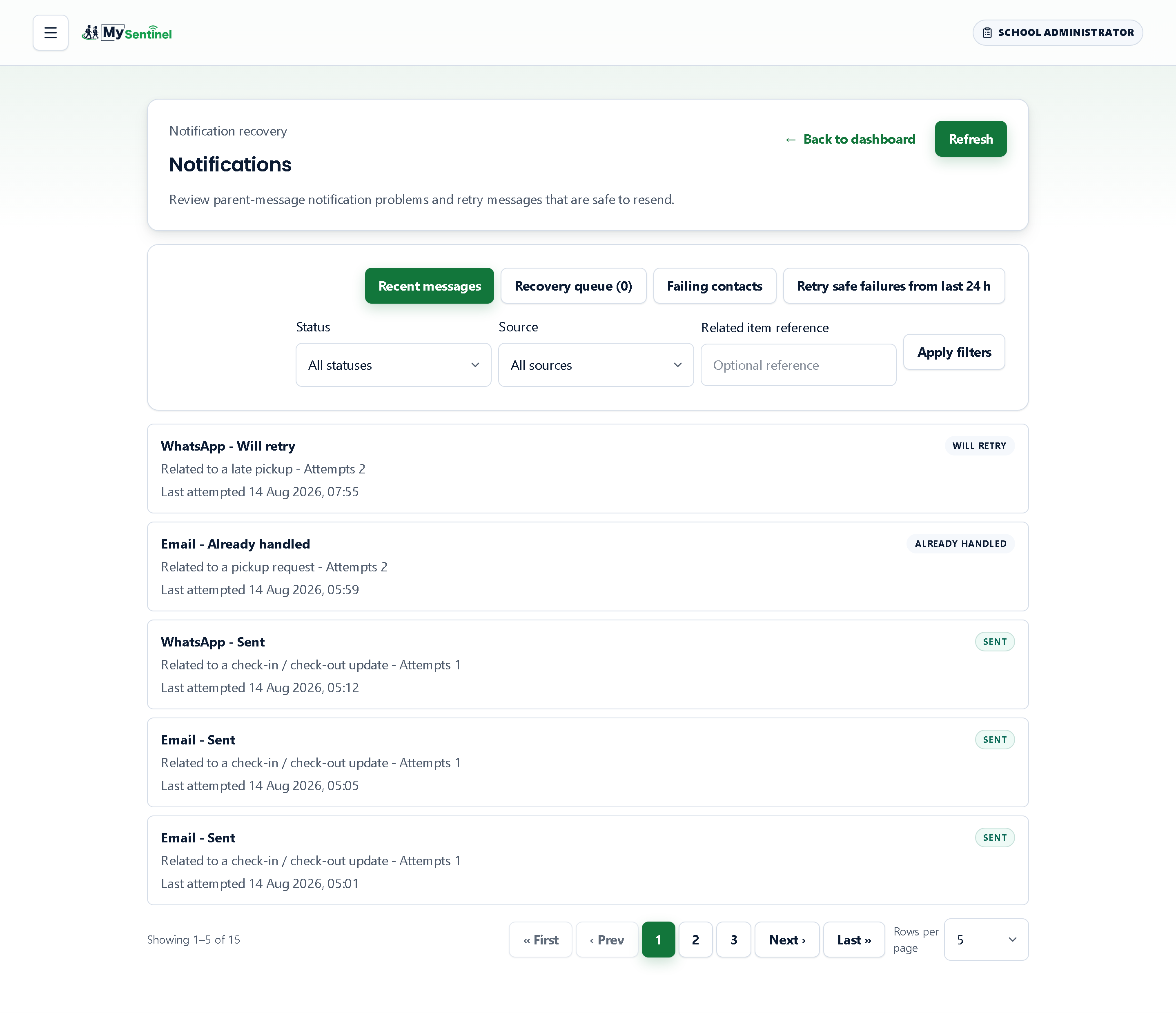
The page is headed Notifications and describes itself as reviewing parent-message problems and retrying messages that are safe to resend. It has three tabs.
Recent messages is the log. Each row names the channel — App notification, WhatsApp, SMS, Email — and its outcome, what it related to, how many attempts were made, and when the last one was. It opens showing every status, not a pre-filtered view, so the records you came for are visible immediately.
Learn these outcomes; they are the whole vocabulary of this screen:
- Sent — it went.
- Will retry — it failed in a way that is worth trying again, and the system will.
- Channel not ready — that channel was not usable at the time.
- Could not send — a permanent failure.
- Not needed — deliberately skipped, because a better channel had already confirmed.
- Switched off — that message is switched off, so nothing was attempted.
- Not reached — nobody was reached at all. This is the one that matters.
Not reached and Not needed would both once have read as skipped, and they mean opposite things: one is a saving, the other is a family nobody told.
Filters above the list narrow by status, by what the message was about (check-in / check-out, emergency, safety alert, late pickup, pickup request), or by a specific reference if you have one from another screen.
Recovery queue and failing contacts
Recovery queue holds work that gave up entirely — messages that never reached anyone and are waiting to be re-driven, each with what it related to, when it was captured, and a Retry button.
Failing contacts is the per-parent view. A channel that keeps failing is paused rather than hammered, and each row shows the parent, their learners, the channel, whether it reads Paused or Needs new contact details, when the pause lifts and when it last failed. Clear and retry lifts a pause immediately after a confirmation dialogue that tells you exactly that.
Clearing a pause is not a fix. If the number is wrong it will fail again in minutes. Correct the contact detail on the learner record first, then clear.
Across the whole school, the same signal appears on your dashboard as an amber Channels at risk card with the number of guardians affected — amber, because a degraded channel is work to do, not an emergency.
Opening one message
Any row opens a detail page. It gives you the channel and outcome, how many attempts, when the last one was, whether a retry is scheduled, why it needs review, and for WhatsApp the provider’s own receipt. It states that recipient details are hidden here for privacy — you are looking at whether a message arrived, not at somebody’s phone number.
Two buttons: one jumps to the activity trail for this exact message, and one resends it. A resend of a single message asks you to confirm with your passkey before it will go, because it puts a real message in front of a real family. The bulk Retry safe failures from last 24 h button on the list does not — it only re-drives failures the system had already classified as worth retrying.
Where the last attempt was a permanent failure, resending requires you to tick a box acknowledging that first. The page tells you when it will not resend at all.
Seeing what a parent will read
Notification templates renders any of the guardian messages — arrival, going-home, emergency broadcast, late pickup, lockdown and drill notices — in English, Afrikaans or isiZulu, showing the WhatsApp text, the app notification and the email side by side, with your school’s own WhatsApp readiness beside the heading.
Use it before you change a setting that switches a message on, and use it when a parent quotes something back to you and you want to see the words they actually received.