

The school workspace
Attendance and the day
How a badge scan becomes a present mark, where absences are resolved, what the morning nudge does, and the checklist that tells you whether the day can be closed.
Attendance in MySentinel is not something anybody types. It is a by-product of the gate: the first check-in of the school day marks a learner present, and the screen says so in as many words at the top.
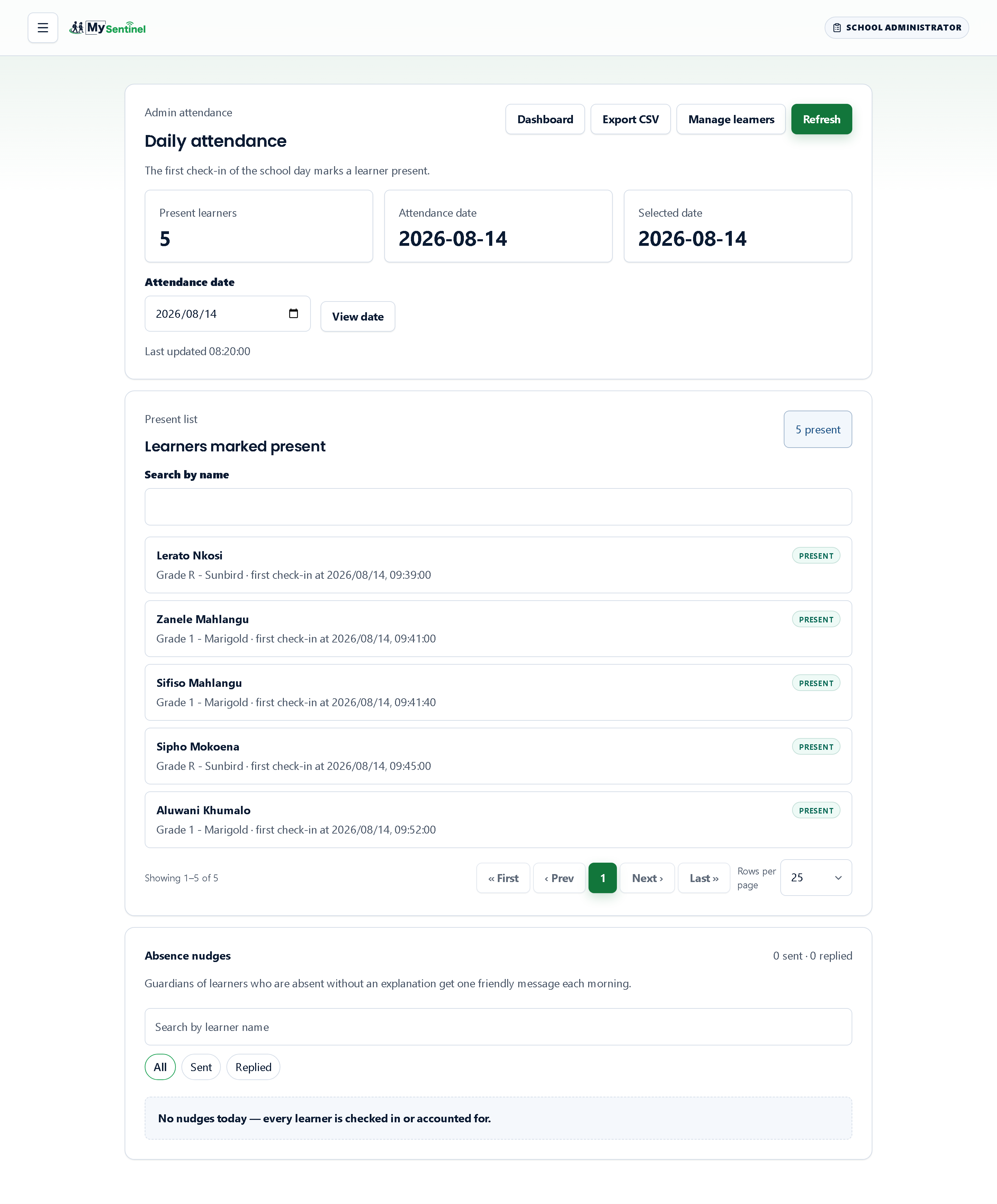
Daily attendance
The page opens on today. Three cards give you the present count, the date the list is actually for, and the date currently selected in the picker — three separate figures, because looking at a past day and forgetting you had done so is the easiest mistake to make here.
Choose another date and press View date to move. Export CSV hands the chosen day’s attendance to the reports screen with the date already filled in. Refresh re-reads the day, which matters at the start of a morning when learners are still arriving; the page does not update on its own.
Below, a panel headed Learners marked present lists everybody with a green Present chip, their class or grade, and the exact time of their first check-in. A Search by name box narrows it. The class column comes from the roster rather than from the attendance record, so it may appear a moment after the names do — normal, not a fault.
What this list cannot tell you is why somebody is missing from it. That is the next screen.
Absence nudges
At the bottom of the attendance page is a log headed Absence nudges, with a running tally in the form sent and replied. The description states the rule plainly: guardians of learners who are absent without an explanation get one friendly message each morning.
One message, not a series. The log lets you search by learner and filter on whether a reply came back, so at nine o’clock you can see who was asked and who answered. Where to switch this on, and at what time it goes out, is covered in the settings chapter.
Absences
Absences is the screen where the day gets resolved. It keeps one record per learner per school day and reconciles two sources that do not always agree: what the gate saw, and what the teacher marked.
Each row carries the learner, a Gate column reading Checked in or No show, the Teacher mark, and a status:
- Awaiting roll — the register has not been taken yet.
- Auto-excused — confirm — a parent’s note covers this day and somebody should confirm it.
- Excused and Unexcused — the day is settled either way.
- Conflict — review — the gate and the register disagree.
The conflict status is the one to work through first. A record that says a child was never seen at the gate while the register says they were present is a question about whether a child is on the premises, which is a different order of problem from a parent who forgot to phone. Resolve opens a small dialogue offering Excuse absence or Mark unexcused, and the row settles.
Classes
Classes is the smaller housekeeping screen behind all of this. A class groups learners so that a class teacher has a dashboard and so that reports can be cut by class or grade. The list tells you at a glance which classes have a teacher and which do not, and archiving one you no longer use hides it until you press Show archived — it never removes the learners.
Opening a class gives you its own page: the name, the grade, an optional class teacher, and the learners in it with the same status filter as the main roster. This is where a teacher is attached to a register.
If your class roll-up on the dashboard shows learners under an unassigned heading, this is the screen that fixes it.
Subject groups
Subjects, beside Classes, is for schools that take the register per subject. A subject group is a subject, the learners who take it, and the teachers who take its register — one register a day. The list shows each group with its teachers, how many learners it holds, and which classes they come from.
Add subject group opens the editor. Type the subject (or pick one you have already used) and a group name, then add the teachers: a group can have several, and any of them can take the day’s register. Anyone who holds the teacher role can be chosen, including a deputy who also works in the office. Learners are added a class at a time — choose the class and Add this class — and then you remove anyone who does not take the subject, so a group that mixes three classes takes a minute to build. Save group keeps it; Archive group hides it from its teachers while every register already taken stays on record.
View registers opens a group’s registers, one day at a time, read-only. They are the staff’s record of who was in the lesson and nothing more: a subject register never changes what a parent sees, it produces no filed document, and the office does not correct marks on it. The year-end rollover archives every subject group along with the classes, and the new year’s groups are set up fresh.
Registers
Everything above reads the gate: a badge touched a reader, so the learner is on the property. The register is the other half of the same morning, and it is a different statement — the class teacher saying who was actually in the room. The two are allowed to disagree, and a school that takes a register keeps both.
From a class’s page, Registers opens every register that class has filed. The list runs newest first over a date range you choose, and it holds only the days a register actually exists for: a day with nothing on it produces no row, because “no register was taken on the 14th” is a sentence about the week you asked for rather than a record the school holds. Each line tells you when it was filed, how many learners were in attendance out of how many on the roll, and whether the office has corrected anything on it.
Opening one gives you the register as it was filed — the school, the class, the teacher and the date across the top, the figures, and then every learner with what the gate saw beside what the teacher stated.
The filed document
A register is written to a PDF the moment the teacher submits it, and kept for two years. The download on this screen hands you that file. It is never made on demand, and that is the point: a document produced on the morning somebody asks for it would carry corrections the filed register never had, which on a record a district can demand is not a fresher version but a different one.
So a register the office has corrected says so above the download, in as many words: the document records what was stated on the day. If you need the corrected picture, the screen you are looking at is it.
When there is no document the screen says which of four things happened rather than simply going quiet: it is still being written (the render finishes seconds after the teacher submits), it could not be written, it was destroyed because a family exercised their right to be forgotten, or it passed the two-year keeping period. Only one of those is anybody’s to act on, and none of them is the register itself — the register is safe in every case.
Correcting a mark
An administrator does not take a register. A register is a teacher’s statement about her own classroom, and the office was not in the room. What the office can do is correct a mark, and since the register now outranks the gate on a parent’s own screen, that matters: a child marked absent in class reads as absent to her family, whatever the gate saw.
Correct appears against a learner whose mark can still be changed. You choose what the register should say, and you must type why. The reason is not a formality — it is stored under your name and it is what the next person to read this register has to go on.
Three things are true of every correction, and the screen says all three:
- The teacher’s own mark is kept. The correction is recorded beside it, never over it, so anybody reading this register afterwards can see both and tell which is which. The screen shows the teacher’s mark, your correction, your name and your reason on the same line.
- A mistake can be put right. If you correct the wrong learner, or choose the wrong mark, correct it again. The control on a row that already carries a correction reads Correct again, and the dialog shows you whose correction you are about to replace, when they made it and why, before you choose anything. Your correction takes its place; the teacher’s own mark is untouched by either, and both corrections stay in the school’s activity log under the name of whoever made them.
- The family sees it. The parent’s own attendance page picks up the mark that now stands, with a quiet line saying the school corrected it. It names nobody — your name stays inside the school.
If two people in the office are working on the same register at once, the second correction to reach the system is told so rather than quietly overwriting the first. Close the dialog, open the register again, and you will see what it says now.
Where a correction is not possible the screen says why instead of offering a control that would fail. A register nobody has filed has no mark to correct and the class teacher is the person who files it. A learner who joined the class after the register was filed is not on it. And a register older than ninety days — roughly a school term — is closed: a school reconciles its own register while the day is still in living memory, and beyond that nobody in the office remembers whether the child was there.
Correcting a mark asks for your passkey. It is in the same class as correcting a closed attendance day: a claim about where a child was, made by somebody who was not in the room, over the account of somebody who was.
Day close
Day close answers a question no single screen above can: is there anything still open at this school right now? The subtitle says exactly that, and the page refreshes itself every minute rather than waiting for you to press anything.
It is a set of sections, each with a count or the words All clear — nothing open, and each row carries how long it has been waiting and a link straight to it:
- Open late-pickup alerts
- Learners still on site
- Visitors not signed out
- Failed message deliveries today
- Pickup requests waiting
- Unread parent messages
- Guardian approvals waiting
Long sections are capped at the first twenty with a line saying how many there are in total, so the page stays readable on a bad afternoon.
A Reminder settings button opens the thresholds: how long a pickup request, an unread parent message or a guardian approval may sit before it counts as waiting, when the school day starts and ends, and whether a day-close summary is emailed and at what time.
One thing to know about that dialogue. Unlike the school settings covered later in this chapter, these reminder thresholds save as soon as you press save — no passkey confirmation is asked for and none is required. They change when you are reminded about work, never who may do it or what a family is told, so nothing about them is irreversible. Treat them as tuning, and tune them: a threshold set too low turns the checklist into noise, and a checklist that is always red is one nobody reads at four o’clock.